| 1. |
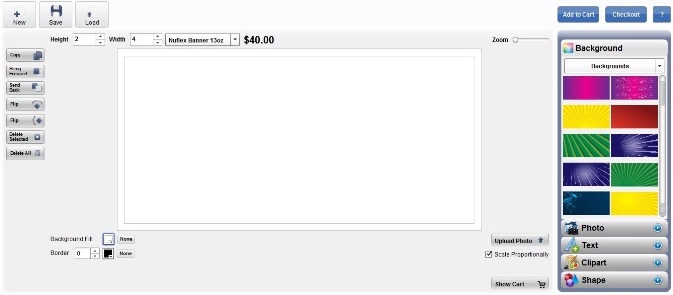
Set the Width and Height of your sign or banner (in cm). This can be changed later, but it is easier to do it first because you will have to adjust your design if you do it later. |
| 2. |
Click on Background & select a background image or select a background color from Set Background Color. Click “None” to remove the background image and/or Set the Background Color to white. |
| 3. |
Add a border if desitred. Adjust the size of the border & change its color. |
| |
 |
| 4. |
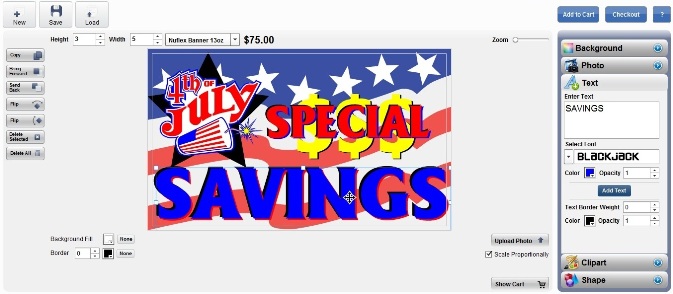
Click the Text button to bring up the text options and add text to your design. Type your text in the Edit Text Here box. Select the font from the Font dropdown menu and choose a Text Color. Click the Add Text button to add the text to your design. You can change the text by selecting it in your design and typing new text or changing the options. |
| 5. |
To change the size of the text, click on the text that you just added to your design. Position your mouse over one of the small squares on the selection box. Click and drag until it is the size you want. To move the text, position your mouse near the center of the text. Click & drag to the desired position. |
| |
 |
| 6. |
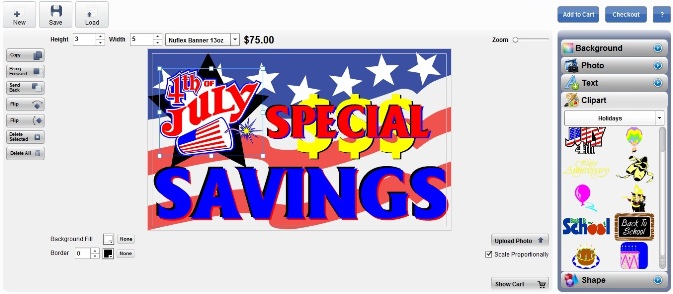
Add Clipart to your design by clicking on the Clipart button. Select a category from the dropdown menu and then click on the desired clipart image to add it to your design. |
| 7. |
Move objects in front of or behind other objects by selecting the object and then clicking on the Step Forward and Step Back buttons. |
| 8. |
Click on Upload Image to upload your own photograph or clipart to use in the design.
*Please Note: Supported image types include JPG & PNG files. The print quality of your uploaded image cannot be guaranteed if you upload a low resolution or low quality image. For the best quality print, your image should be of the highest resolution (most megapixels) and best quality possible. The uploaded file cannot exceed 10MB. |
| |
 |
| 9. |
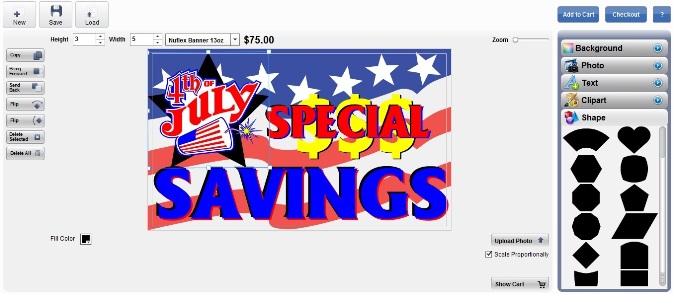
Click on the Shapes button to select shapes for your design. You can change the color of the selected shape by choosing a color from the Change Color color pallet. |
| 10.. |
Flip the selected object horizontally or vertically by clicking on the Flip -- or Flip | buttons. |
| 11. |
When Scale Proportionally is checked, objects and text will be scaled proportionally. When it is not checked, you can stretch objects and text. |
| 12. |
The Save button allows you to save your design to a file so you can edit it later. |
| 13. |
The Load button will open your previously saved design. |
| |
 |

